
Simplify IP Address Management Across Your AWS Organization
AWS IP Address Management (IPAM) and Resource Access Manager (RAM)

Today’s Problem:
I want to create public IP addresses and manage them in one account and share them across my organization. Why? I was just looking at the costs in my AWS account and Elastic IPs happen to be a decent portion of my bill. The EIPs are scattered all over my organization and I’d like to be able to manage them in one account and allocate them from there.
I want to reuse IPs in different accounts for a few different reasons:
I don’t have to change firewall rules when I spin up IP addresses in different accounts. For example, I have rules in my home network firewall traffic to and from certain IP addresses. I also have rules in third party services that specify which IP addresses are allowed to access that service. By using the same IPs regardless of which account I’m in I don’t have to continuously change those rules.
Maybe I can reduce costs. If I can reuse the same IP address in multiple places it will cost me less than having to allocate IP addresses in every single account.
Should an account where I have a resource allocated be compromised, the attacker cannot release the IP address if they cannot get access to my network management account.
I can add a single rule for a block of IP addresses instead of separate rules for each individual address.
Cost
Of course the first thing I do is take a look at the cost. There’s a free tier and an advanced tier:
Cost: $0.00027 per hour per active IP address
Sounds reasonable.
As pointed out by a connection on LinkedIn you still have to pay for the EIP if you’re using IPv4 which is not how I initially read it, but I can still reduce costs by reusing the same IPs in different accounts and it makes managing the IPs and firewall rules easier to save some time. And time is money.
Why IPv4?
I’m going to use IPv4 addresses. For some background, I wrote about why I like using IPv4 over IPv6 in a number of posts here:
https://medium.com/cloud-security/ipv6-60ea6f2b78eb
The gist of it is, I practically have the IPv4 address space memorized so it’s easier for me to work with and there are a number of attacks you need to be aware of if you plan to use IPv6. And if you don’t explicitly turn off IPv6 if you’re not using it, you my also be subject to various attacks. If you enable both IPv4 and IPv6 you have doubled (or more) your management overhead. Initially there were some security weaknesses in IPv6. Now there are some improvements, but not enough to make me want to deal with the potential attack vectors and loss of instant recognition as to where a particular IP originates.
Shared networks on AWS
Here are some posts on how and why I like to share networking on AWS, and some caveats:
https://medium.com/cloud-security/designing-shared-network-for-an-organization-b484fc62a78d
https://medium.com/cloud-security/sharing-a-security-group-in-your-organization-dd6aec7864e2
AWS IPAM (IP Address Manager)
Today I’m trying out AWS IPAM to see if it can solve my problem.
I head over to the IPAM screen and check the top checkbox to allow sharing IP information:
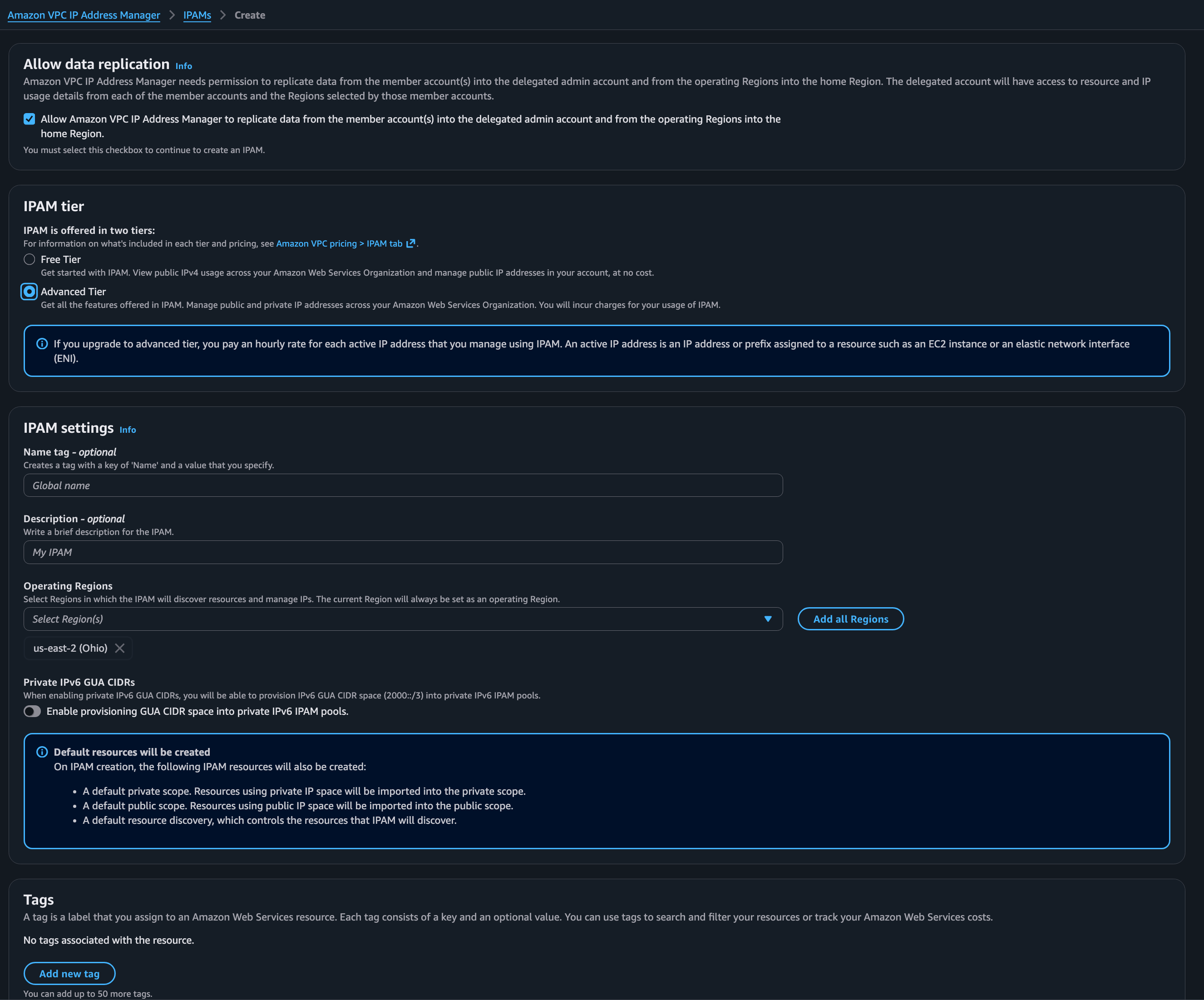
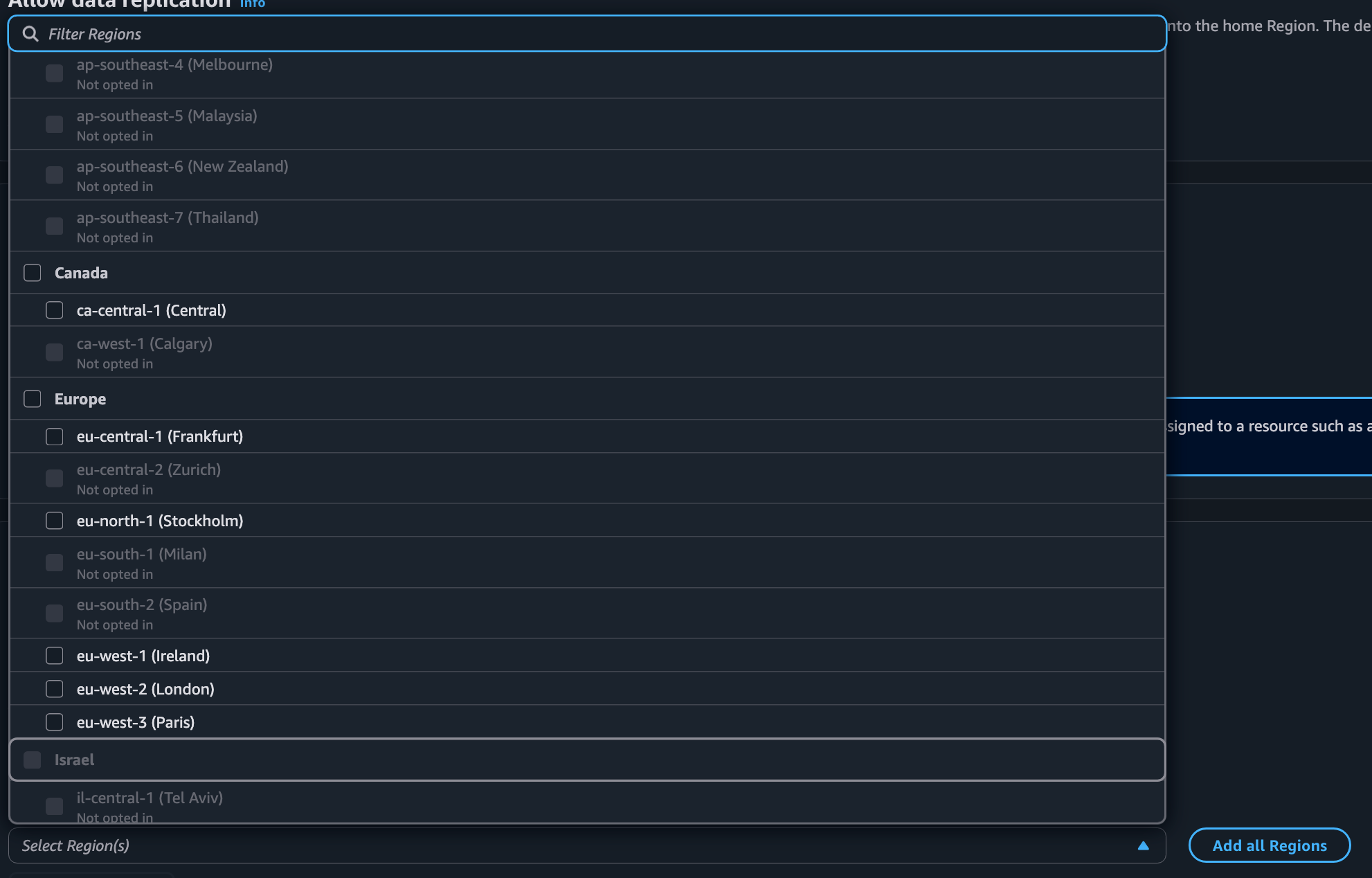
The next thing you will notice is that IPAM is only available in certain regions. What’s a bit confusing is that Amazon Q says the AWS documentation says this service is available in every region. Perhaps you have to manage it in a particular region and then can allocate IPs to other regions. I’ll let you test that out because the regions I need are available for me to select.
Select your regions. Create your IPAM.
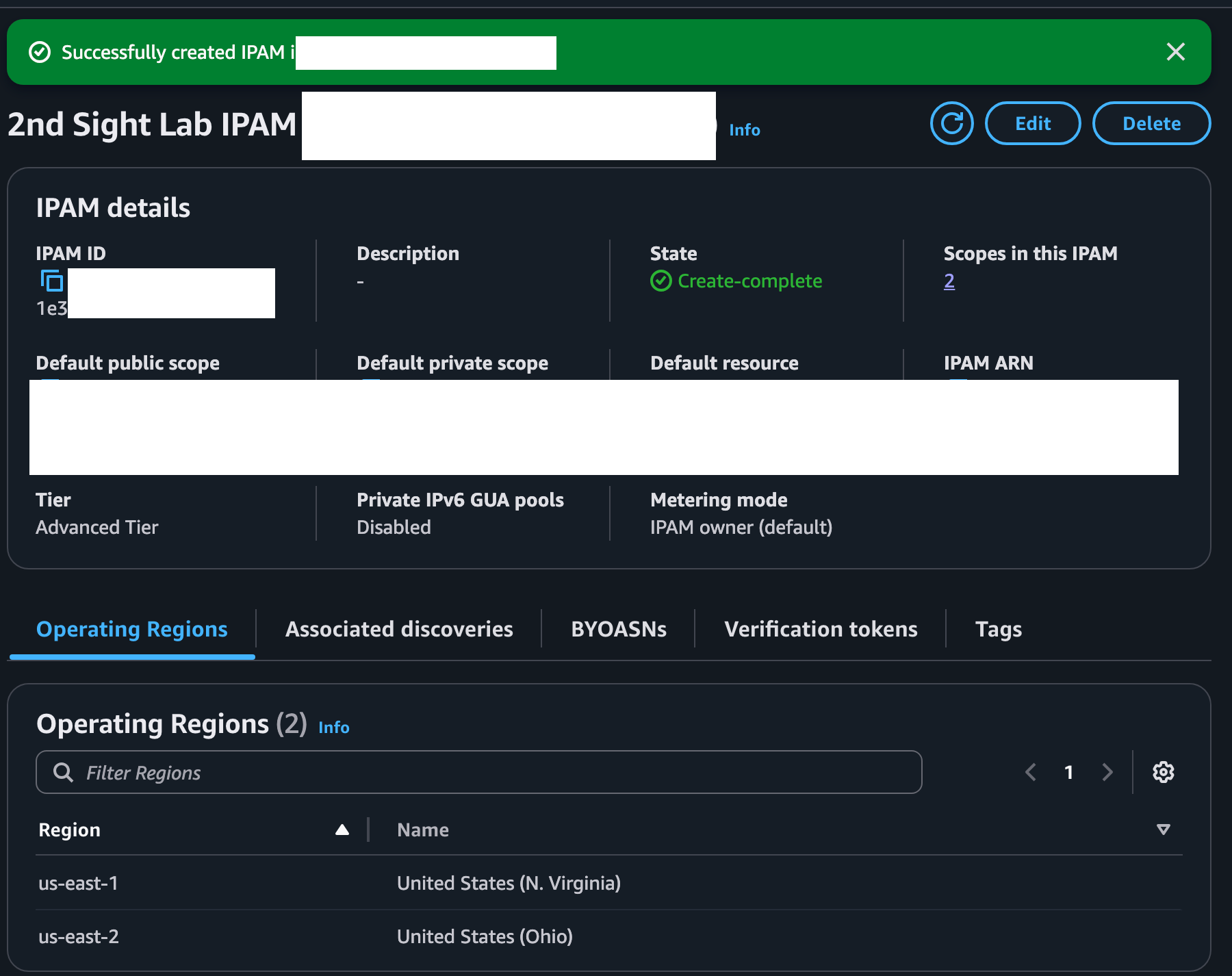
I created the IPAM. Now what?
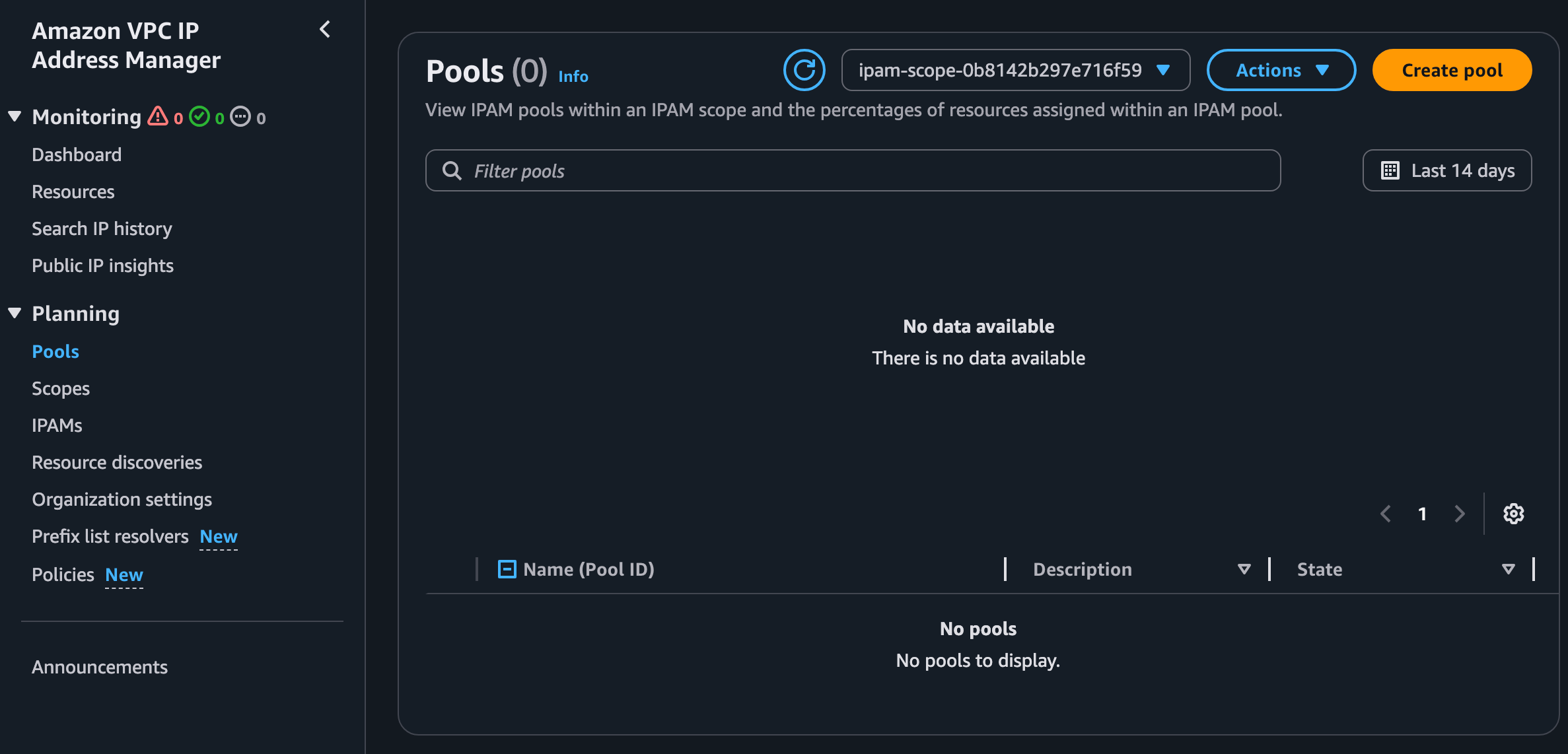
Create an IP Pool (A pool of CIDRs you can manage together)
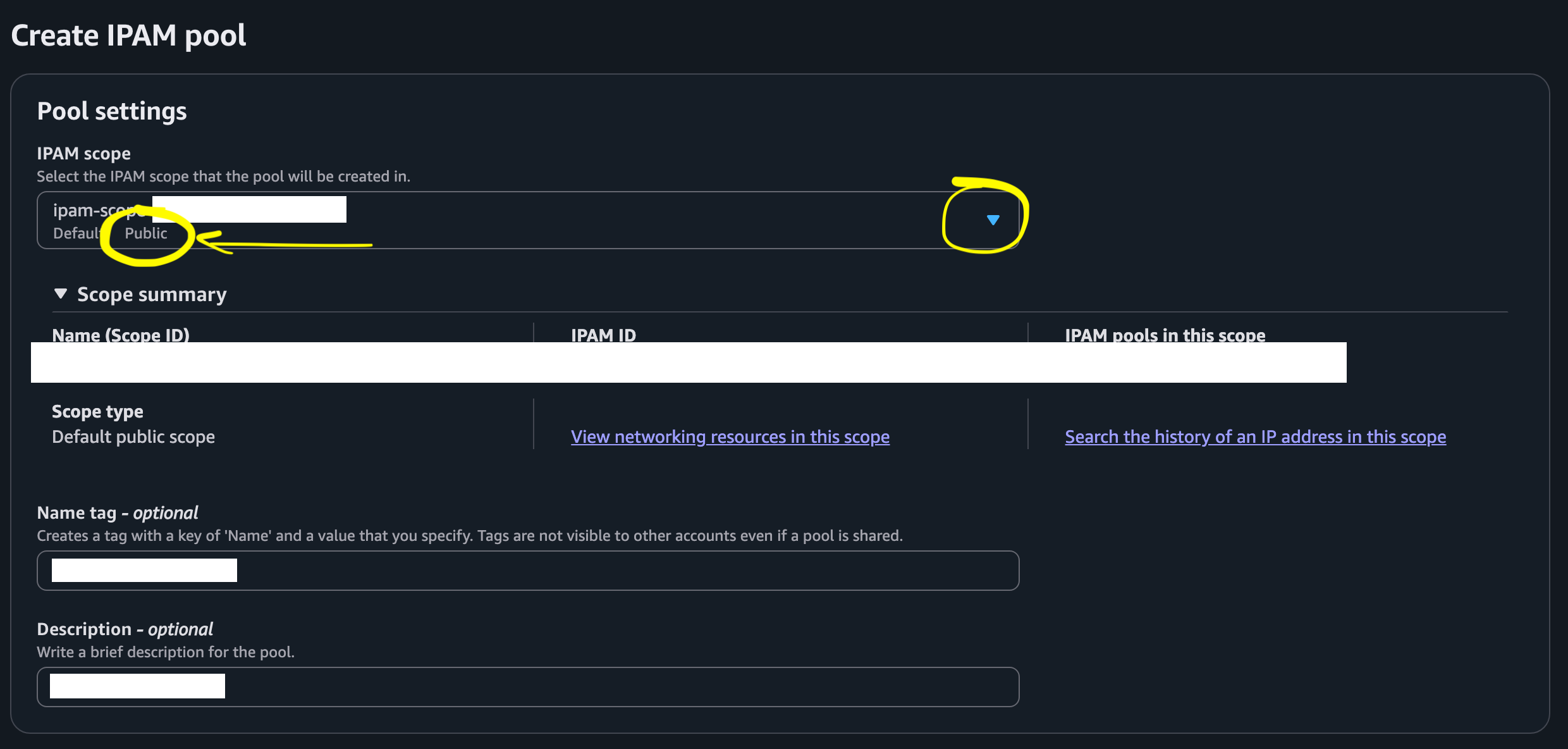
Click Pools on the left and then Create Pool
The important part here is to select a Public or Private pool. (Do you want public or private IP addresses?)
I choose public because I want to connect to IP addresses associated with EC2 instances from remote networks. In other words, I’m going to assign these IP addresses in this pool to EC2 instances and connect to them using SSH or RDP.
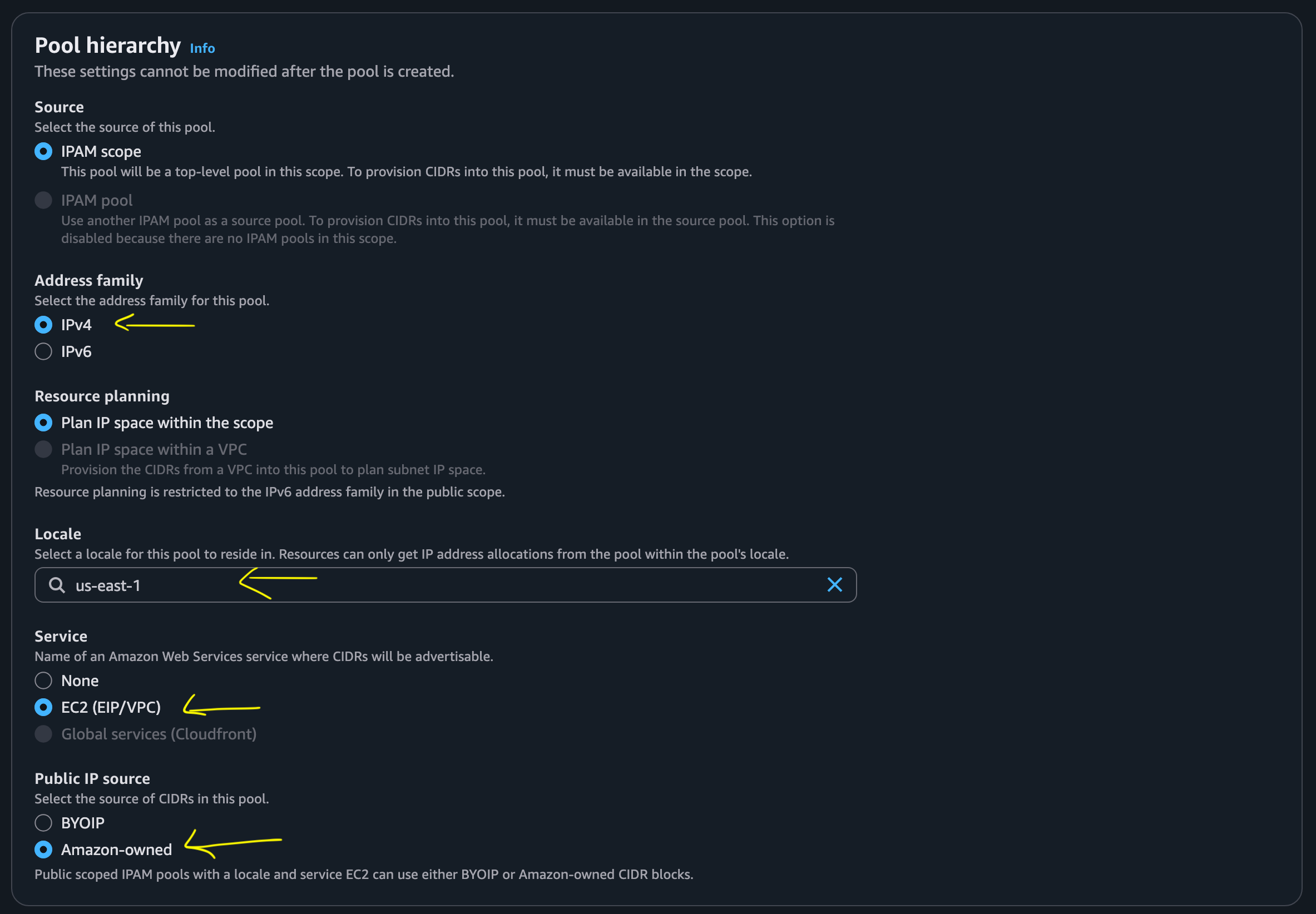
I want to use IPs with EC2 instances owned by AWS so I choose the following:
IPv4
The region you are launching IP addresses in
EC2 (EIP/VPC)
Amazon-owned
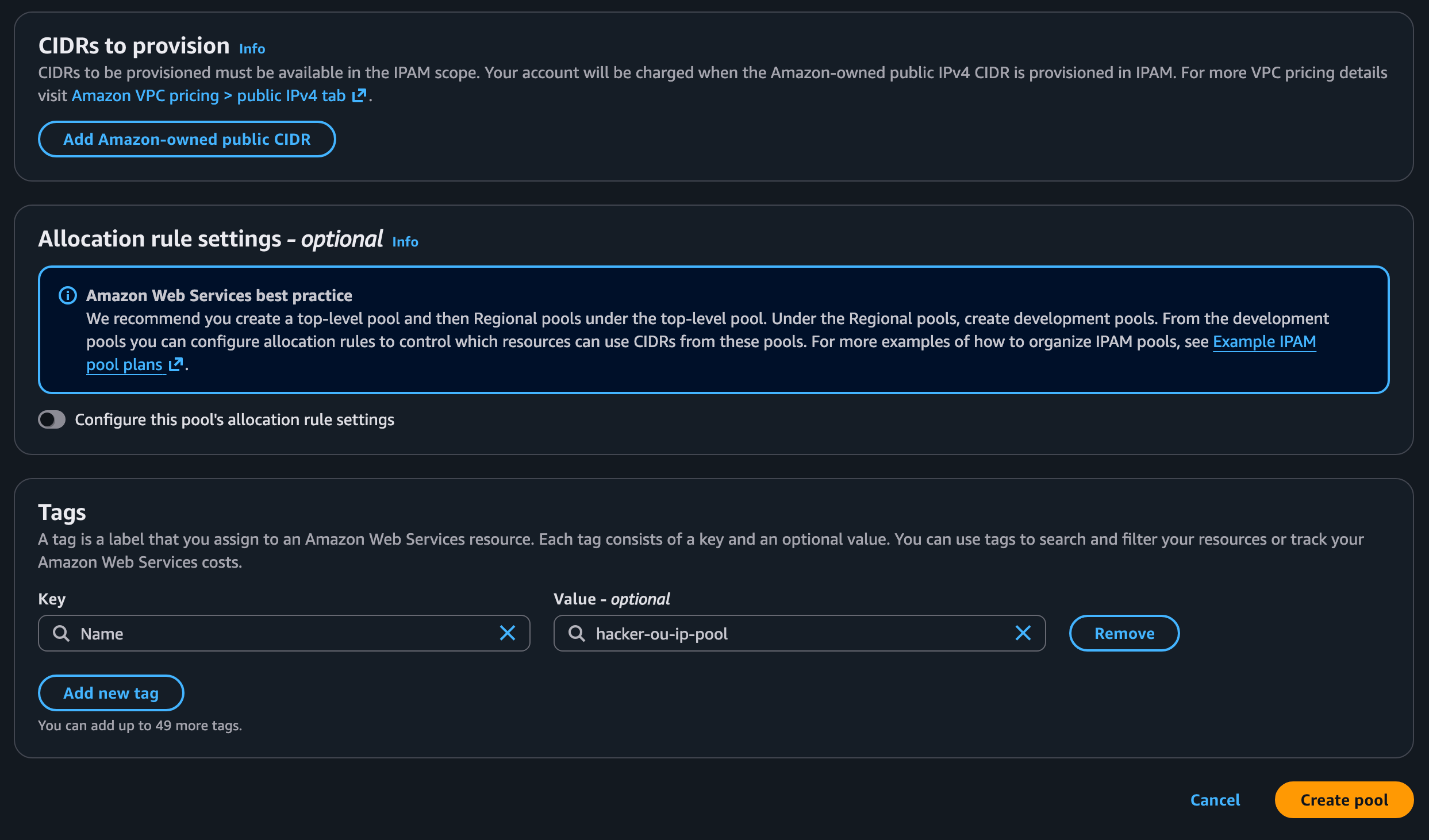
I left the rest of the defaults. Of course you’ll want to read up on best practices.
Click Create pool.
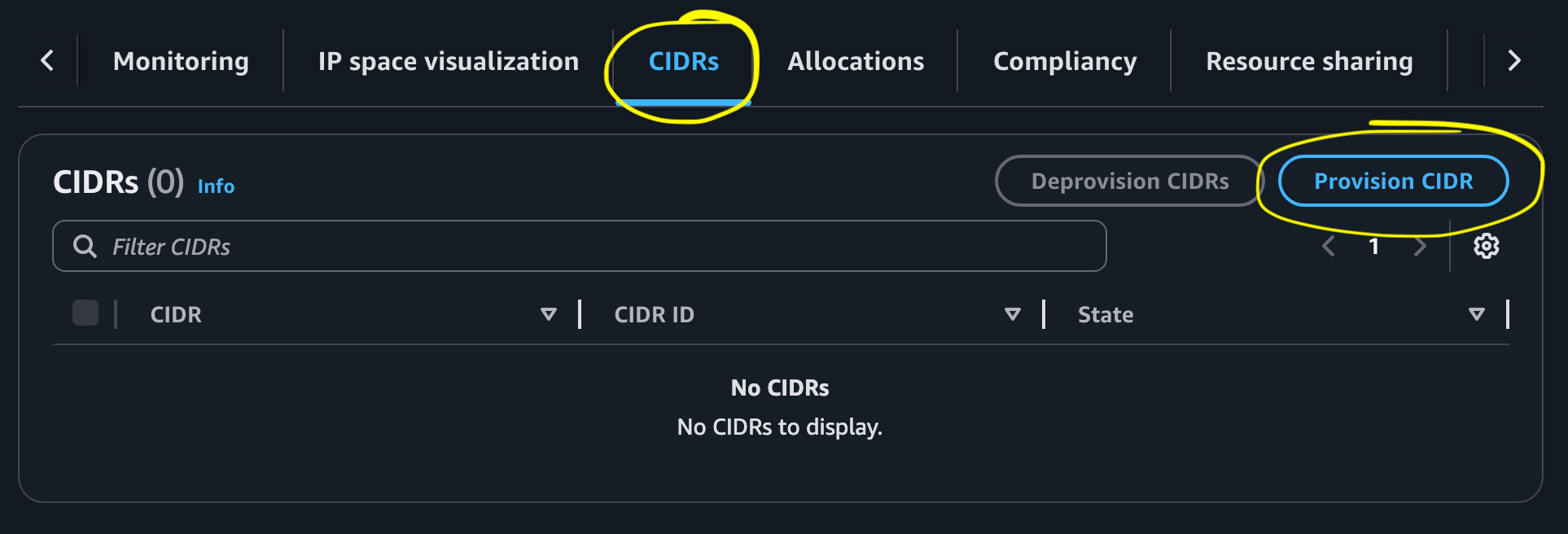
Provision a CIDR
A CIDR block is a group of IP addresses. We need some IP addresses that we can assign to our EC2 instances and use for consistent firewall rules in other systems and services.
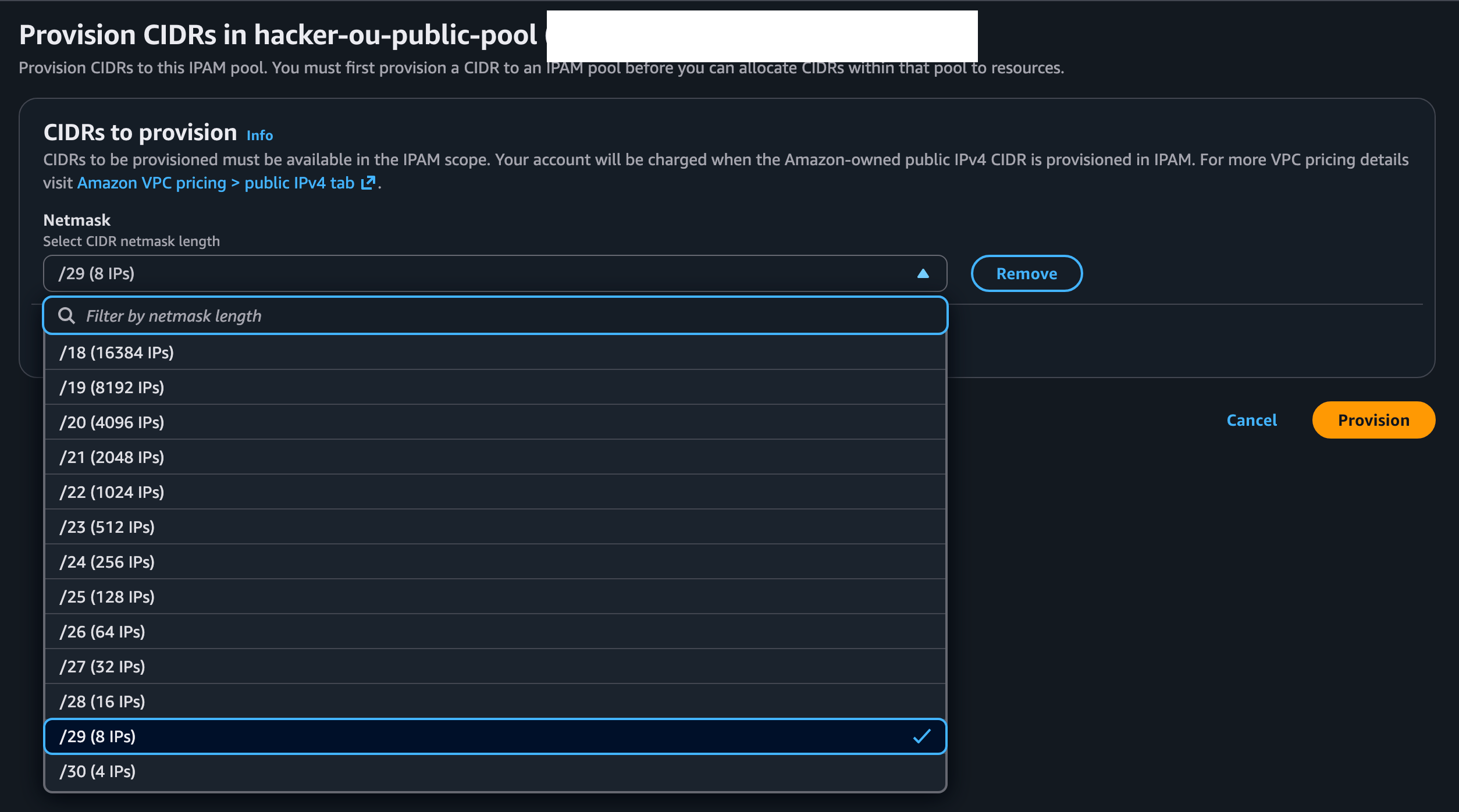
Select CIDRS > Provision CIDR
Select however many IPs you need.
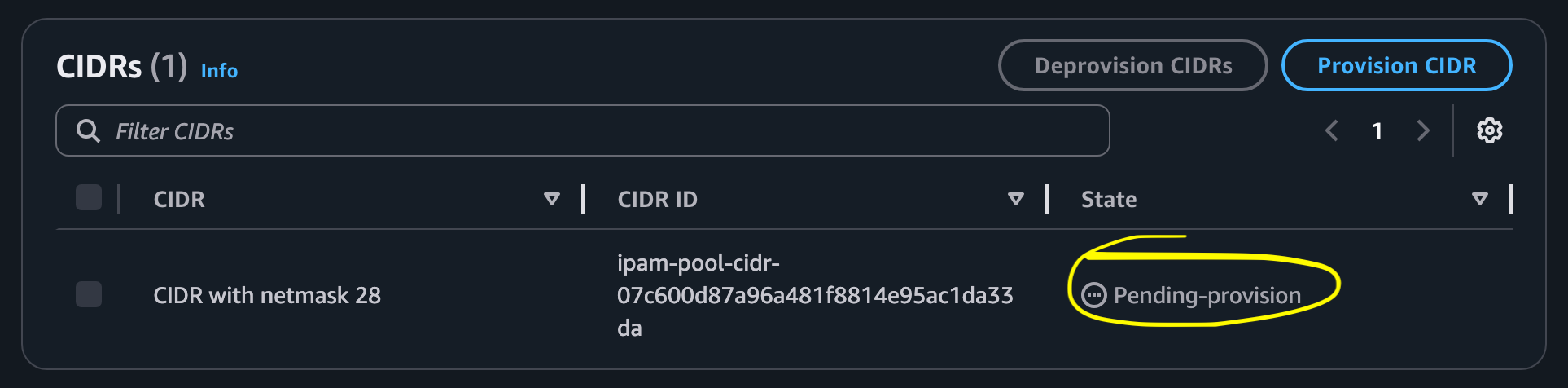
Initially my pool says Pending-provision.
Then I get this error - meaning I asked for more IPs than I’m allowed to request initially
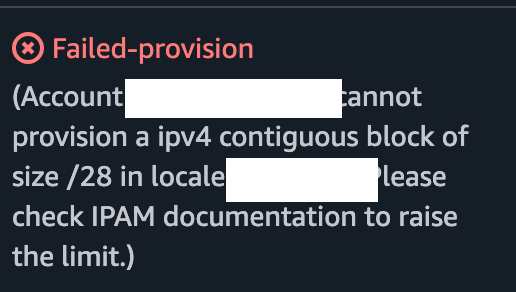
If you want to try to raise the limit read the documentation and make a request to AWS Service Quotas:

For now I’ll just try the lowest number of IPs in the list.
My IP range is almost immediately provisioned:
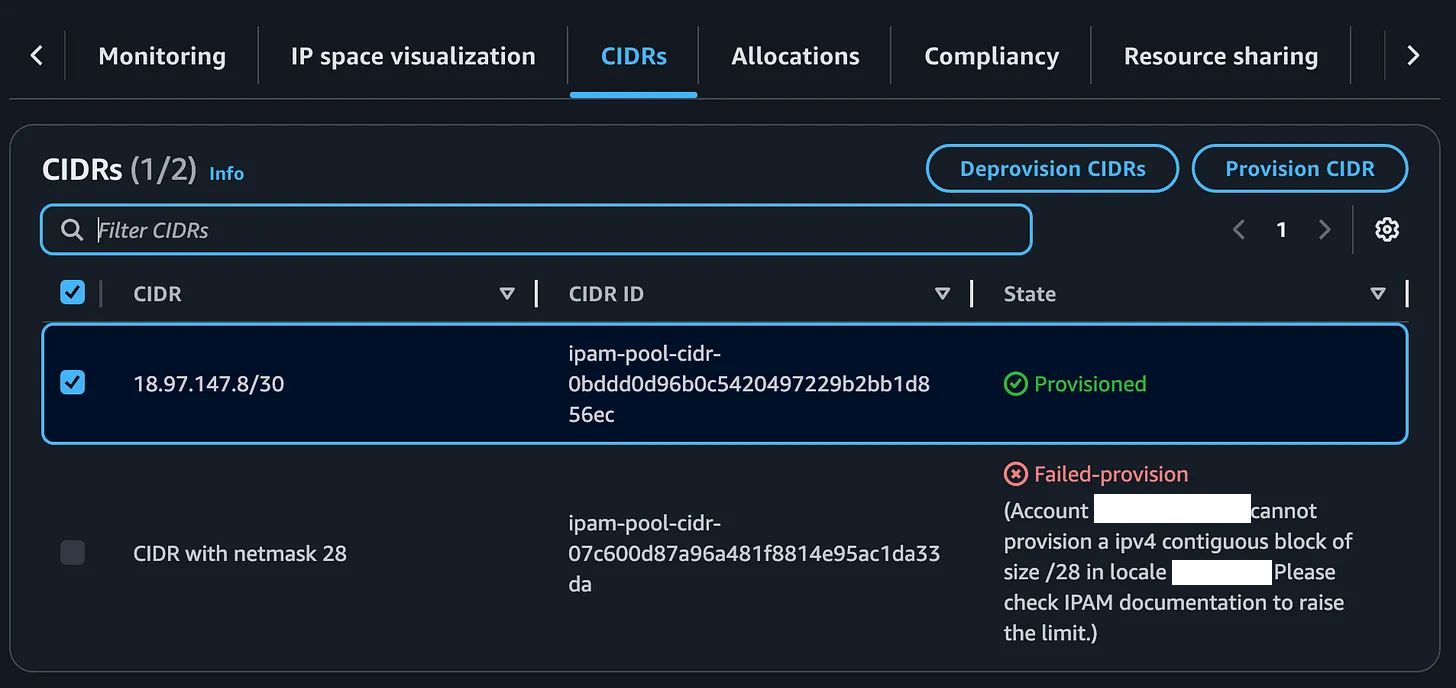
There’s one other nice thing about IPAM vs. EIPs. Your IP addresses are contiguous, meaning they are all IP addresses in the same block and you can add a single rule to your firewall or IP rules in other places instead of having to add four separate rules for four separate IP addresses.
Share the Addresses
Now I want to use these IP addresses in other accounts throughout my organization. Here’s where Resource Access Manager (RAM) comes into the picture. I can use RAM to share resources to other accounts and one of those resources is a pool of IP addresses managed by IPAM.
You can create a resource share from within IPAM:
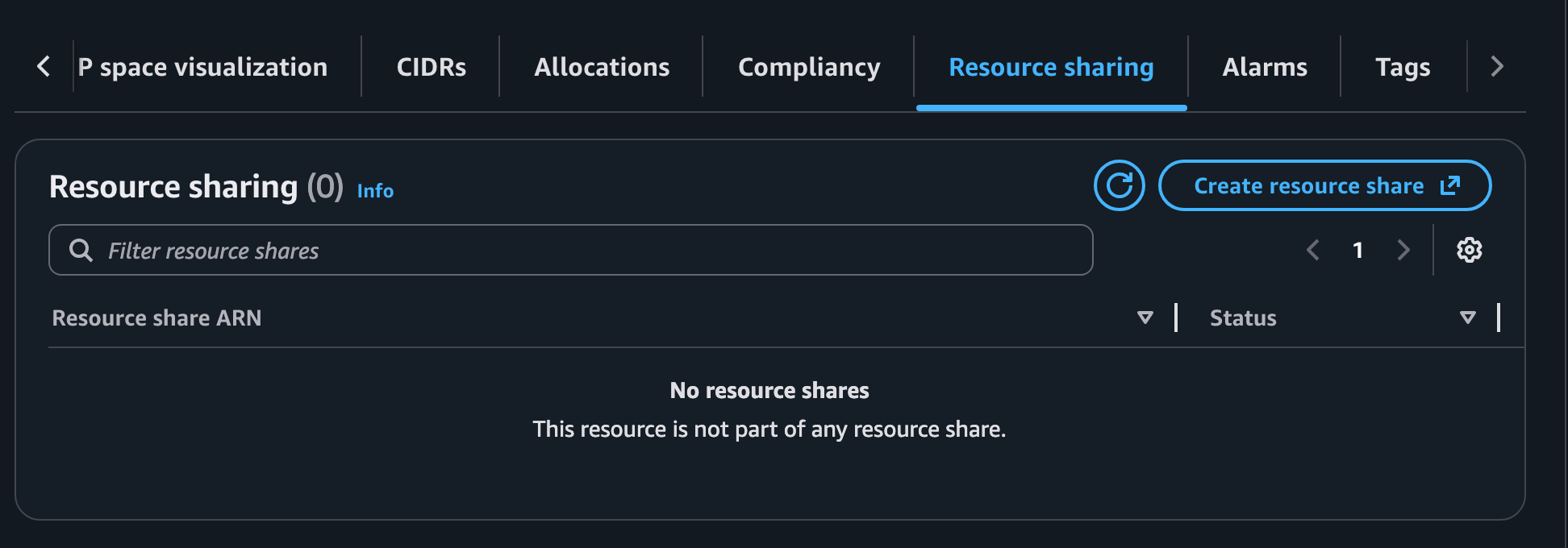
In my case, I already have a resource share with some other networking I created in the above blog posts so I am going to add my new resource pool to that existing share. Select IPAM Pools as the resource and check the box next to your pool and save your resource group.
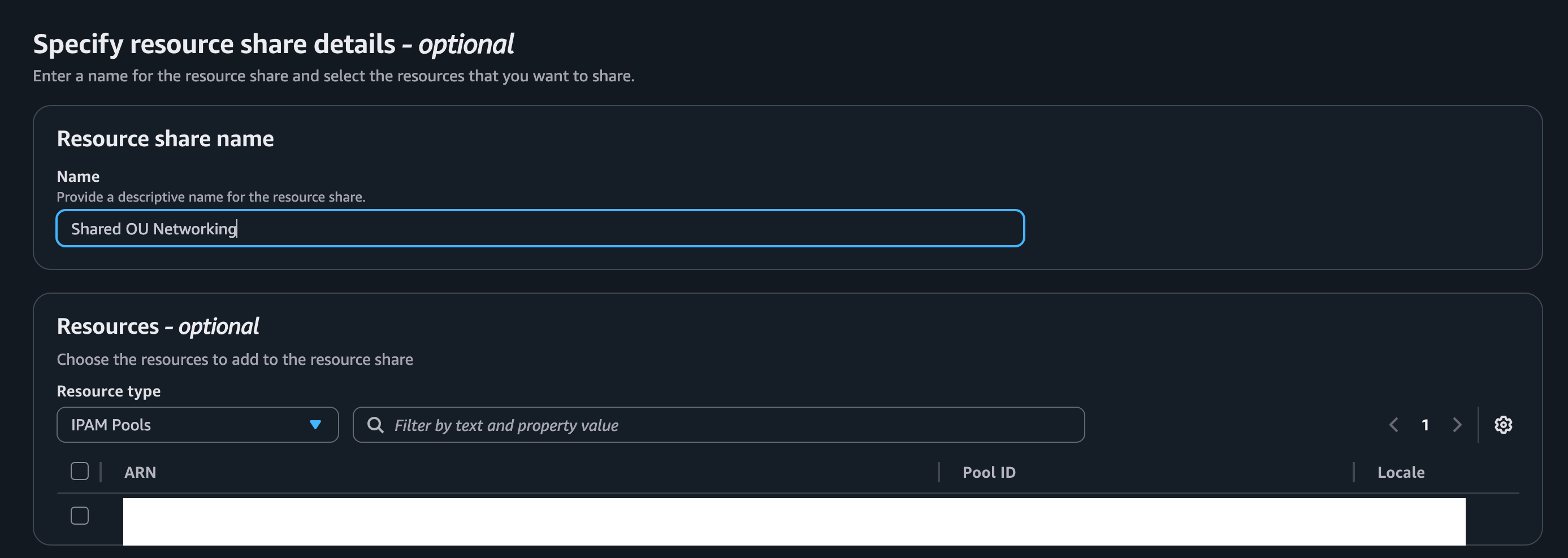
I’ve shared that resource group to a particular OU in my AWS Organization as explained in the other blog posts. Let’s see if I can go use those IPs now.
Assign an IP address from the Pool to an EC2 instance
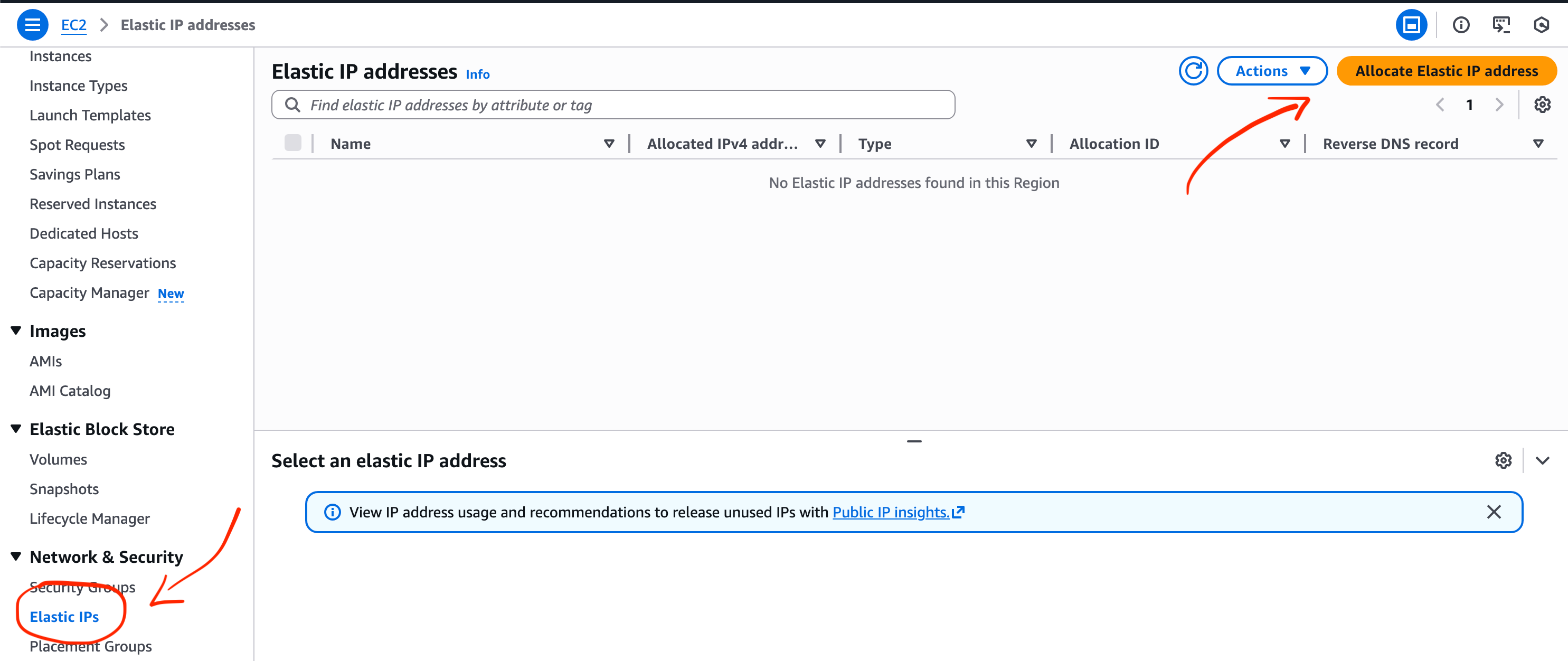
Now when I head over to one of my accounts in the OU I can head over to EC2 where I have an EC2 instance running. If I choose Elastic IPs there are no IP addresses in the list. Wait, I thought I shared that pool?
Click on Allocate IP address
Click Allocate using an IPv4 IPAM pool.
I let AWS pick an IP from the pool but you can manually enter it if you need a specific IP address from the pool. Click Allocate.
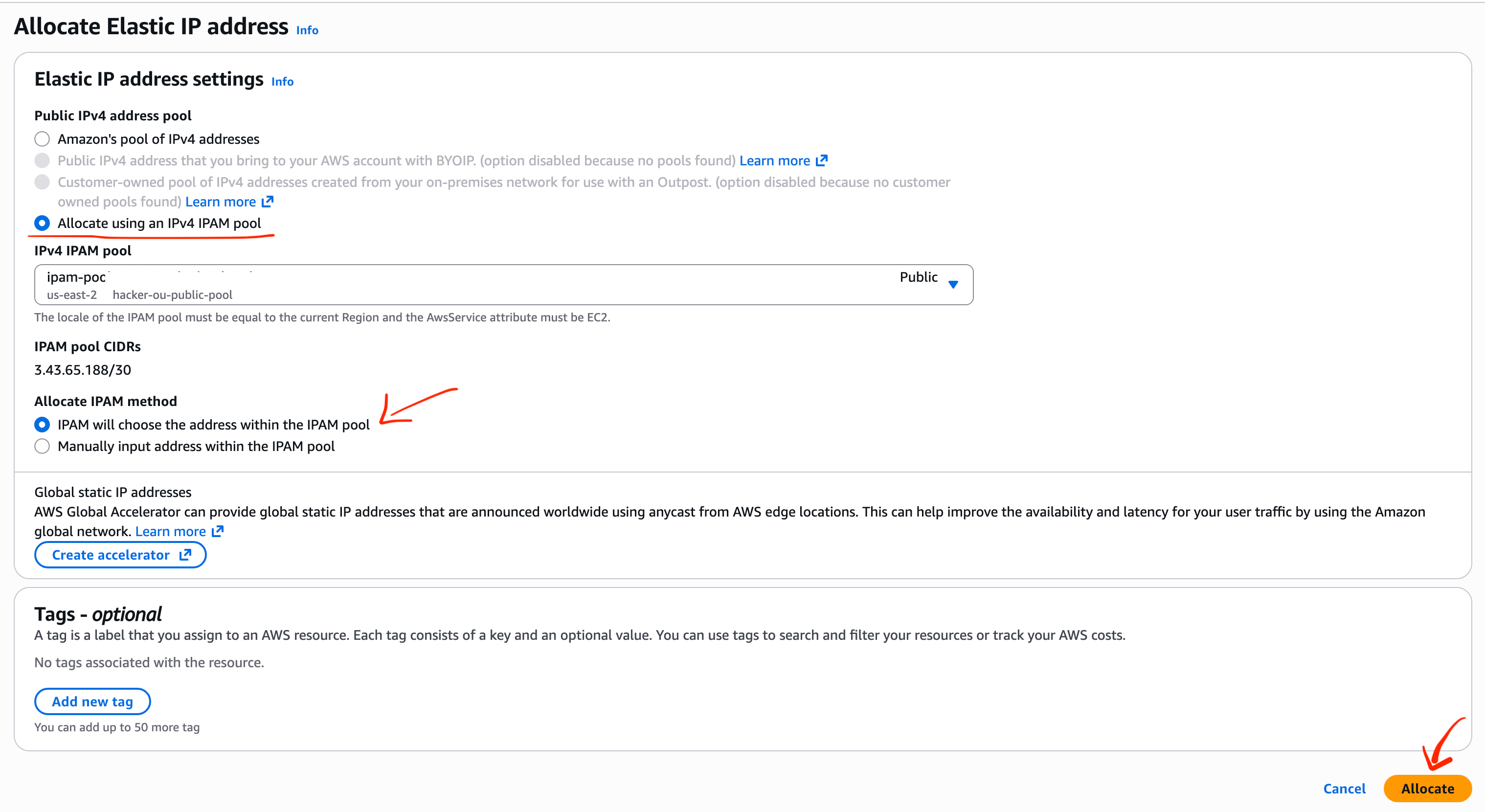
Oops now what:

Well the instructions from the Q diagnosis were completely wrong.
I check out the Organizations link in IPAM:

Aha. Q can’t seem to figure this out due to a permissions issue.
Log into your AWS Organization management account.
In AWS Organizations choose Services > AWS VPC IP Address Manager
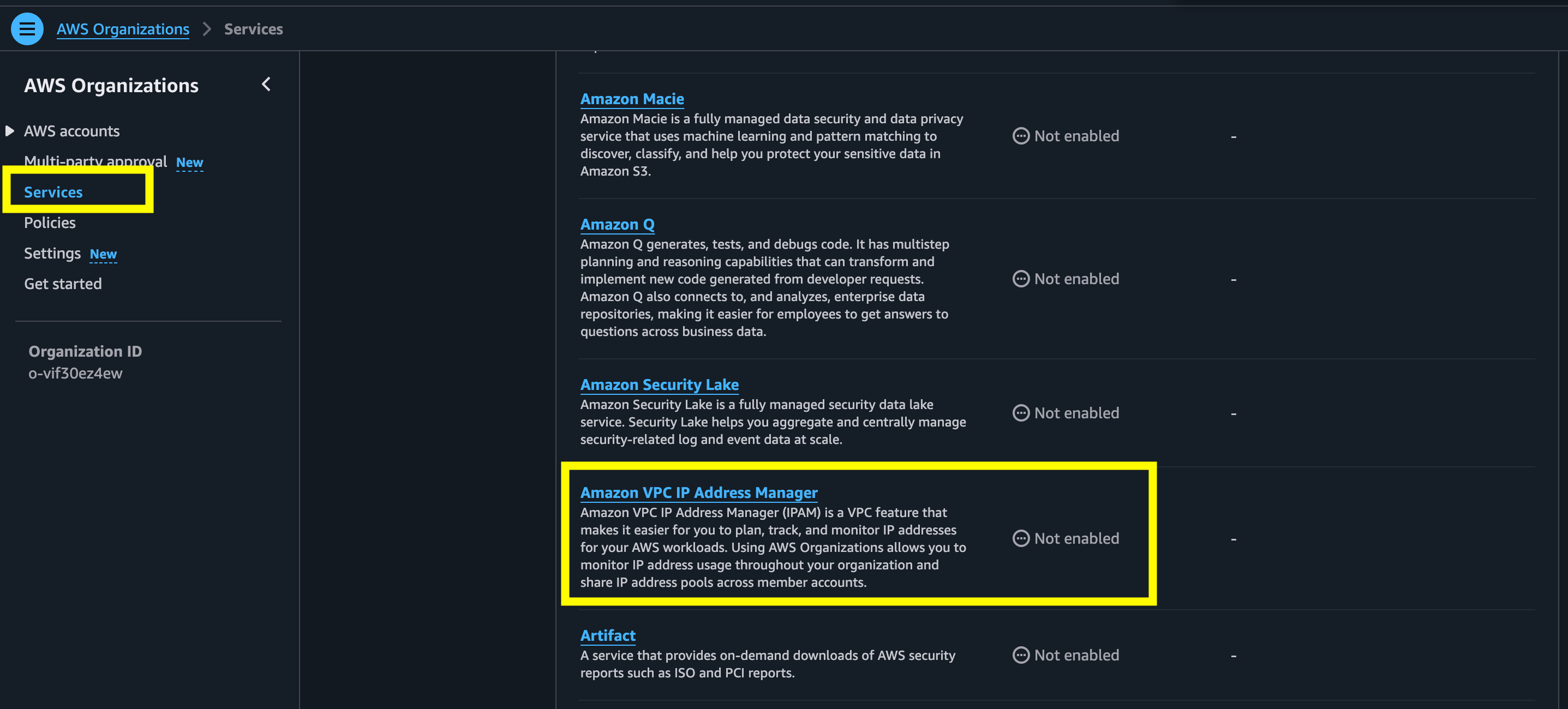
Enable trusted access:
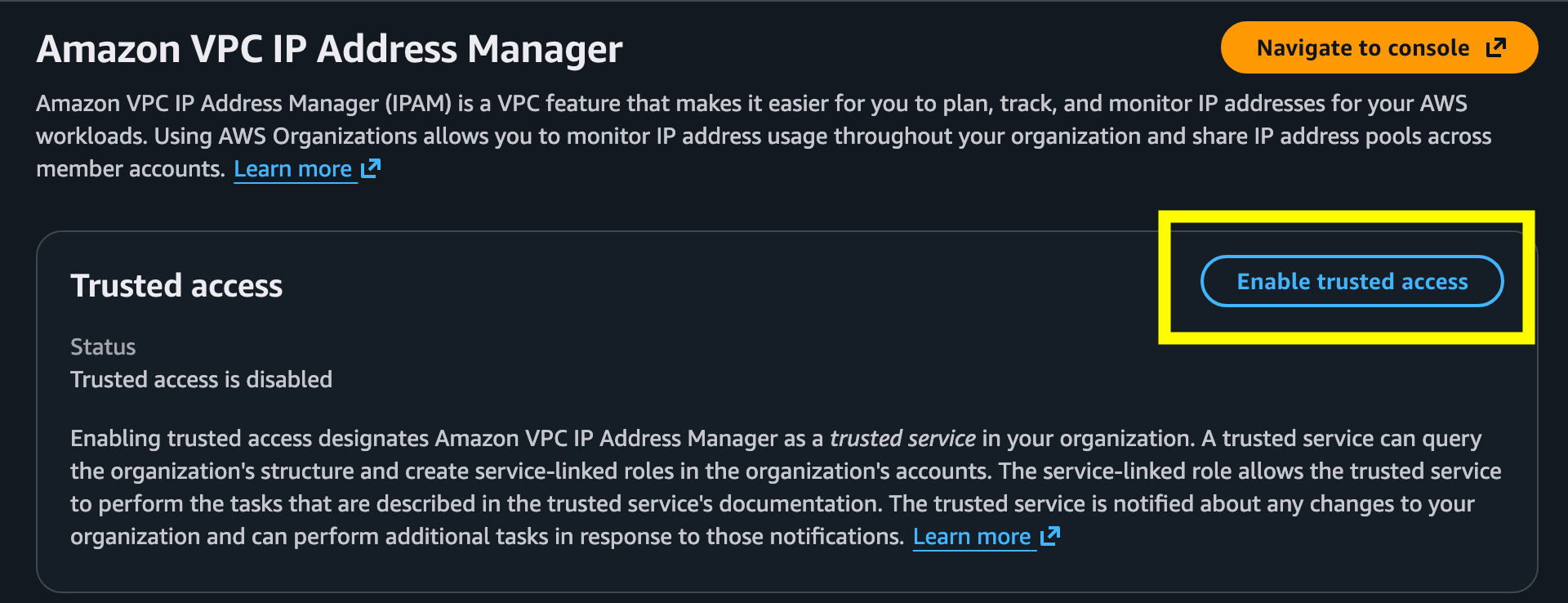
It wants me to do this through the IPAM console. OK.
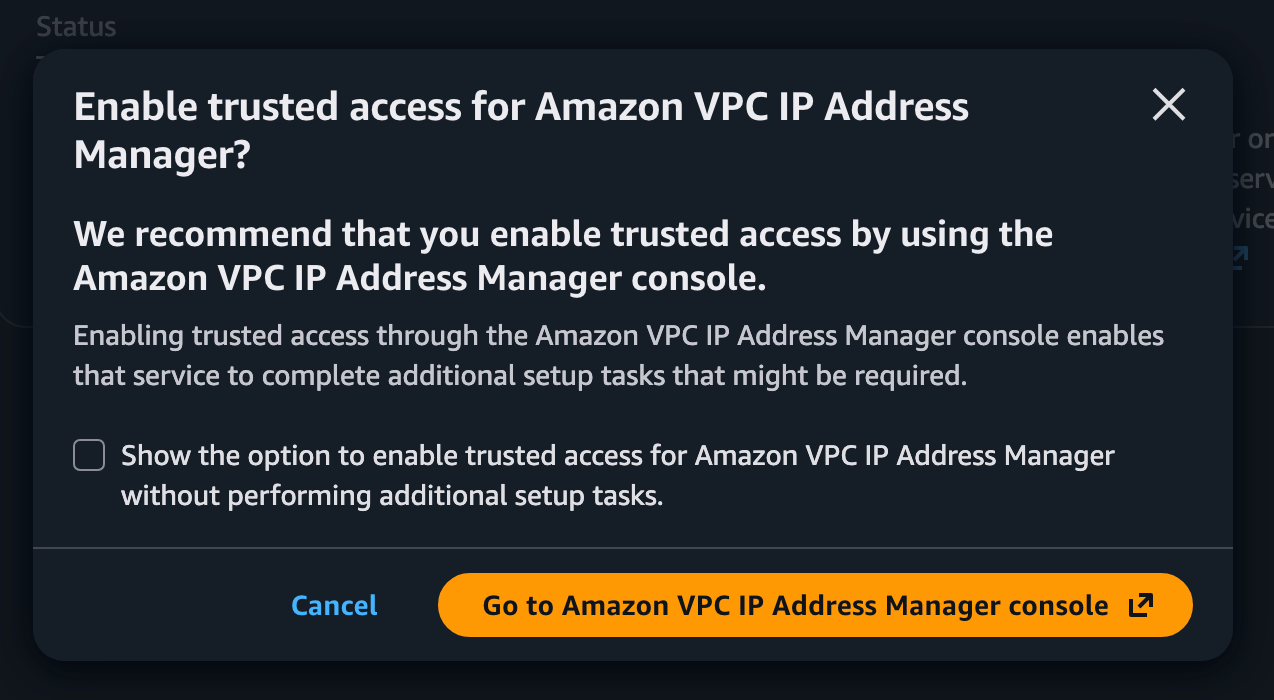
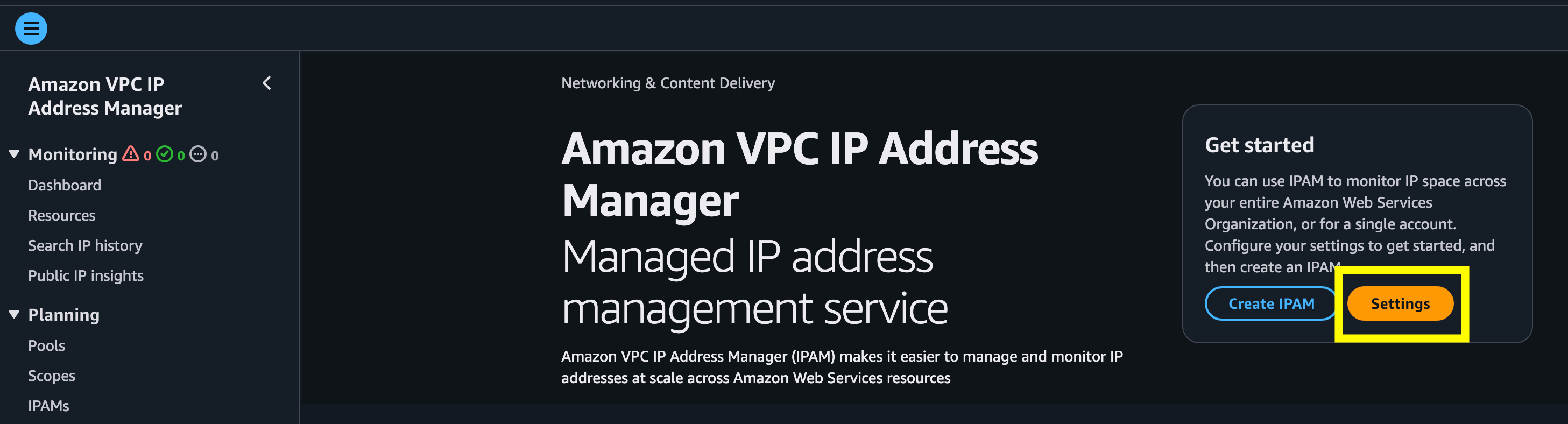
I could create an IPAM here but I want to manage all my networking from my network account. Best practice is not not deploy resources into your AWS Management account. So I’m going to delegate managing this service to my network account.
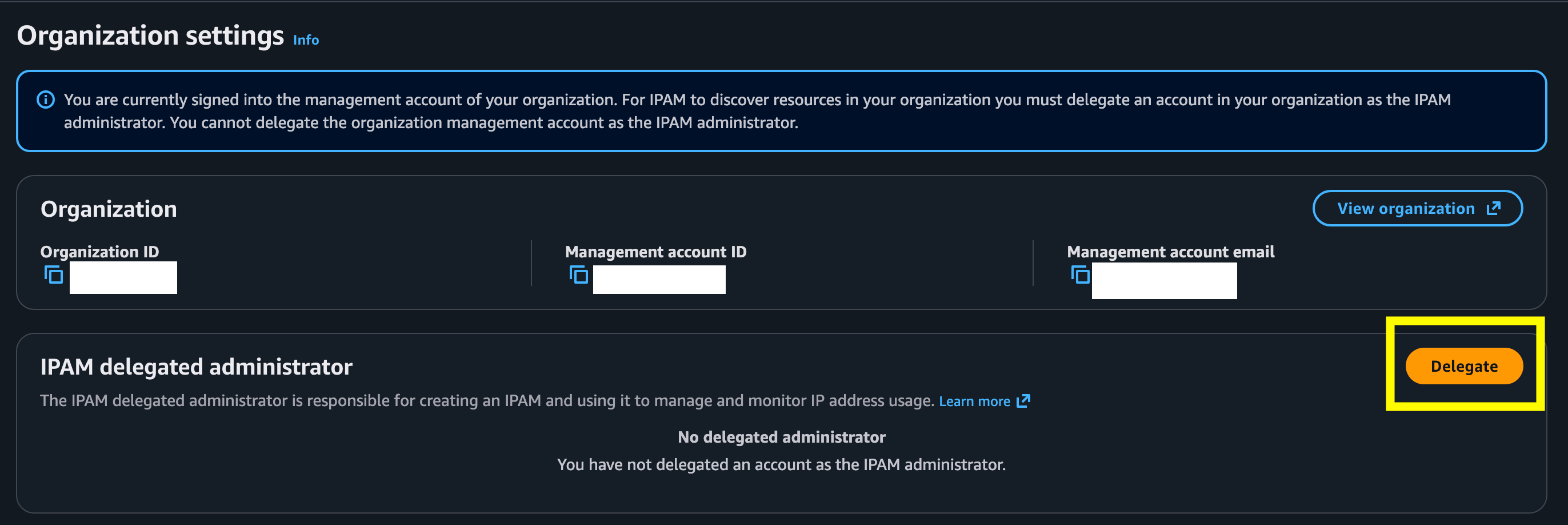
Click Settings.
I don’t particularly like that this page shows the management account email ?!
Anyway, click Delegate.
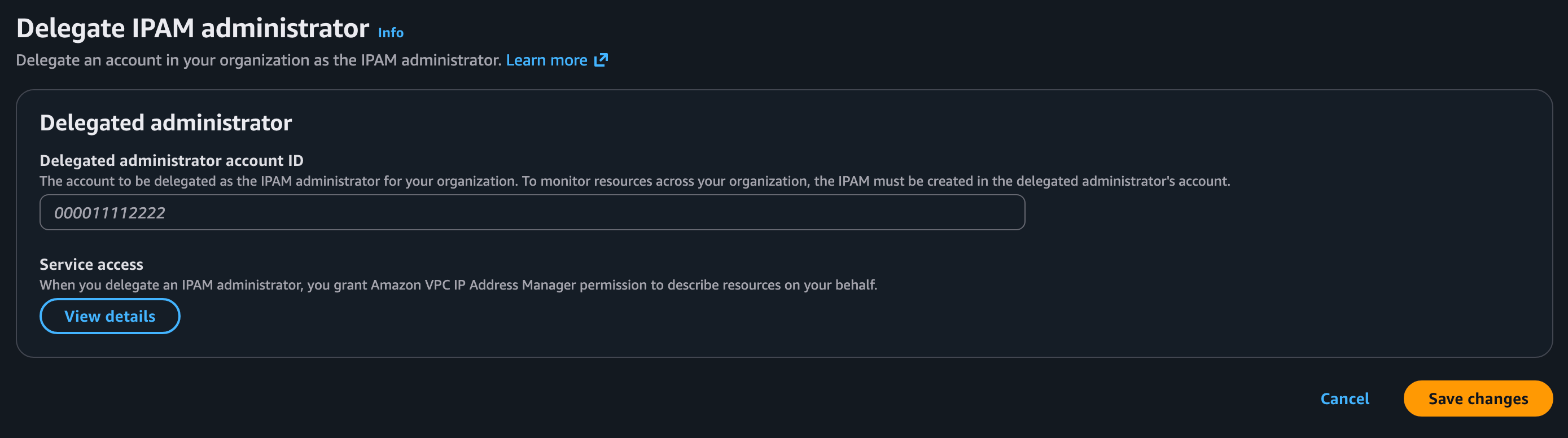
Enter your network AWS account number and click Save changes.
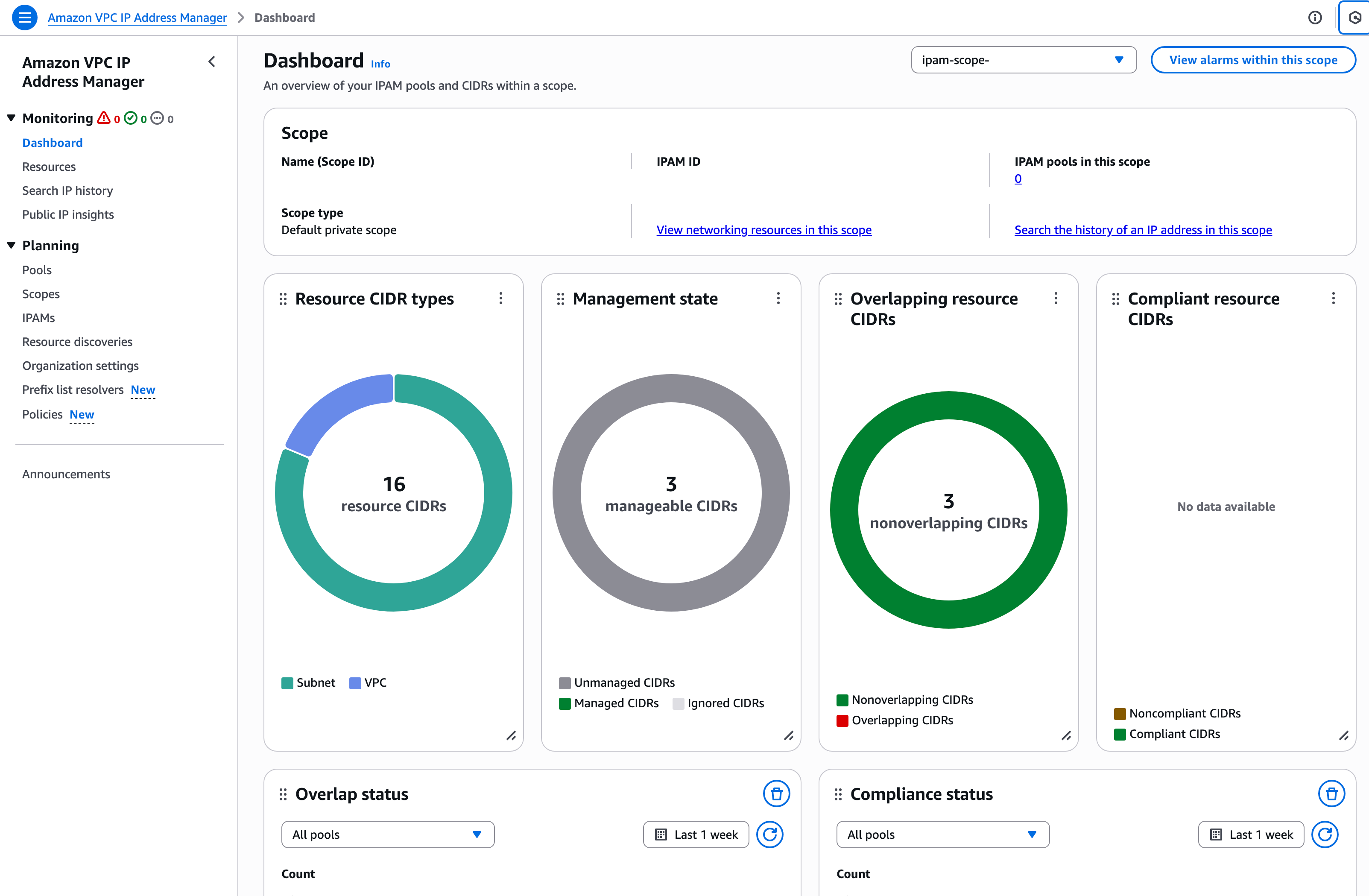
Now when I open up IPAM it looks different. I have a dashboard showing me information about the CIDRs in my VPCs. If you are trying to peer VPCs or create routes between networks it will be important to make sure you don’t have overlapping CIDRs. If you manage networking as I did a while back for Capital One you also may need to manage your IP space and make sure your Subnets and such are sized properly so you don’t run out of IP addresses. Amazon’s IPAM can help with all of that.
Now when I repeat the steps above - yay! I get an IP address from my CIDR block in the resource pool which I can assign to my EC2 instance.

Let’s say I’m not going to use this account for a while. I can release the IP address and use it in another account in my organization, allowing me to reuse IPs so I have less of them to manage, less firewall rules to change, and hopefully I can save some money. It seems like I will unless there’s some hidden cost I missed.
Subscribe for more posts like this on AWS security.
—Teri Radichel
P.S. Find a lot more posts on AWS security here:
https://medium.com/cloud-security/automating-cybersecurity-metrics-890dfabb6198